
Please note that in order to access your ICLS Outlook email, you must already have activated your ICLS Microsoft 365 account. If you have not done so already, click here for instructions.
ICLS.edu emails are hosted on Microsoft Outlook, and can be accessed online through your web browser by doing the following.
For video instructions, click here.
-
Go to outlook.office365.com
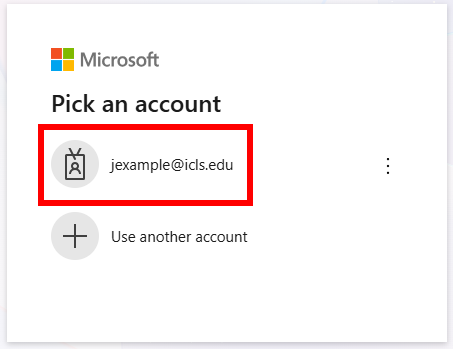
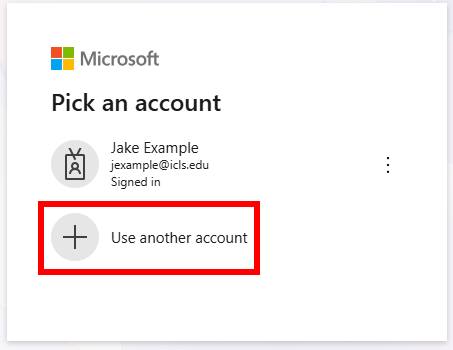
- If asked to "Pick an Account", do one of the following:
- If your ICLS account is shown, click on the icls.edu email in the list
- If your ICLS account is NOT shown, click 'Use Another Account'
- If your ICLS account is shown, click on the icls.edu email in the list
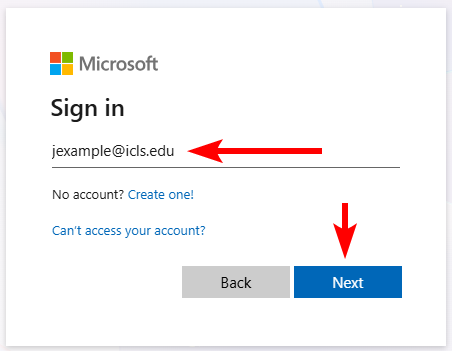
- If asked to "Sign In", put in your icls.edu email and click 'Next'.
- Then, enter your password and click 'Sign In'.
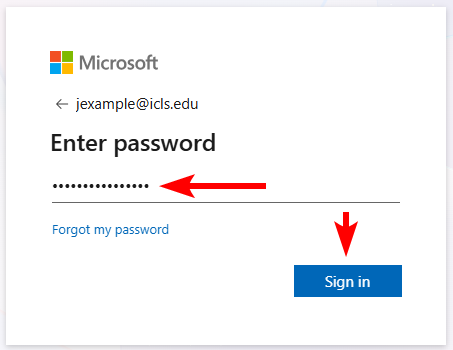
- If you need to reset your password, you can select 'Forgot Password' on the password screen.
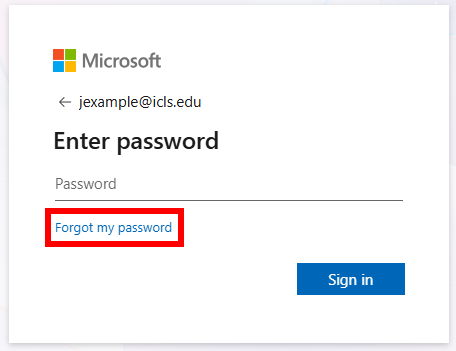
- If you need to reset your password, you can select 'Forgot Password' on the password screen.
Note: Depending on your account, your password may have to be manually reset by IT. If so, please reach out to itsupport@icls.edu for assistance.
Once you are signed in, you will be able to access your ICLS.edu Inbox.
If you have any further questions or need assistance, please reach out to itsupport@icls.edu.