
About Speakology at ICLS
Speakology is an AI-powered conversation practice platform that gives language learners additional opportunities to speak and interact in the target language. At ICLS, Speakology is intended to supplement teacher-led instruction and human interaction, not replace them. The teacher remains at the core of the learning experience.
Speakology was selected after careful evaluation as a tool that could expand opportunities for speaking practice. Its implementation reflects the principles outlined in the ICLS AI Position Statement, including a human-in-the-loop approach that seeks to embrace the benefits of AI while preserving the human connection and instructional quality that are central to language learning.
For this reason, Speakology’s integration at ICLS is an ongoing, collaborative process rather than simply the adoption of a new technology. ICLS maintains regular communication with Speakology’s founder and shares feedback from teachers and students to help shape how the platform evolves and how it is used in our programs.
Use of Speakology is entirely voluntary for teachers, and teachers who choose to use it are supported throughout the process. Effective integration is a partnership among ICLS, Speakology, teachers, and students, with ongoing dialogue and feedback helping us determine where AI adds value—and where human interaction remains essential.
This guide will help you get started with accessing Speakology, using and creating activities, assigning practice, reviewing student progress, and integrating the platform effectively into your course.
What is Speakology?
Speakology allows students to practice speaking with an AI conversation partner. Depending on the activity, students may participate in a role-play, freely discuss a topic of their choice, or complete a teacher-designed conversation task.
Teachers can use existing activities or create their own based on the language, topics, vocabulary, and communicative goals of their courses. Courses in French, Spanish, or German come pre-loaded with a few activities. If you teach another language, you will need to create activities from scratch — it takes about 5 minutes to create one!
Watch: Speakology Demo
Speakology at ICLS
Think of Speakology as an additional space for speaking practice. It can be used to:
-
Prepare students for an upcoming class
-
Reinforce vocabulary, structures, or topics covered in class
-
Provide additional speaking practice between lessons
-
Prepare students for classroom discussions or speaking assessments
- Give students opportunities to practice at their own pace
Accessing Your Course
Once you have received your credentials, you will be able to access your course and invite your student(s). Usually, you will have received at least one hour of training prior to inviting your students to your course.
-
Go to Speakology.ai
-
Log in using [ICLS login instructions].
- From your dashboard, locate your course.
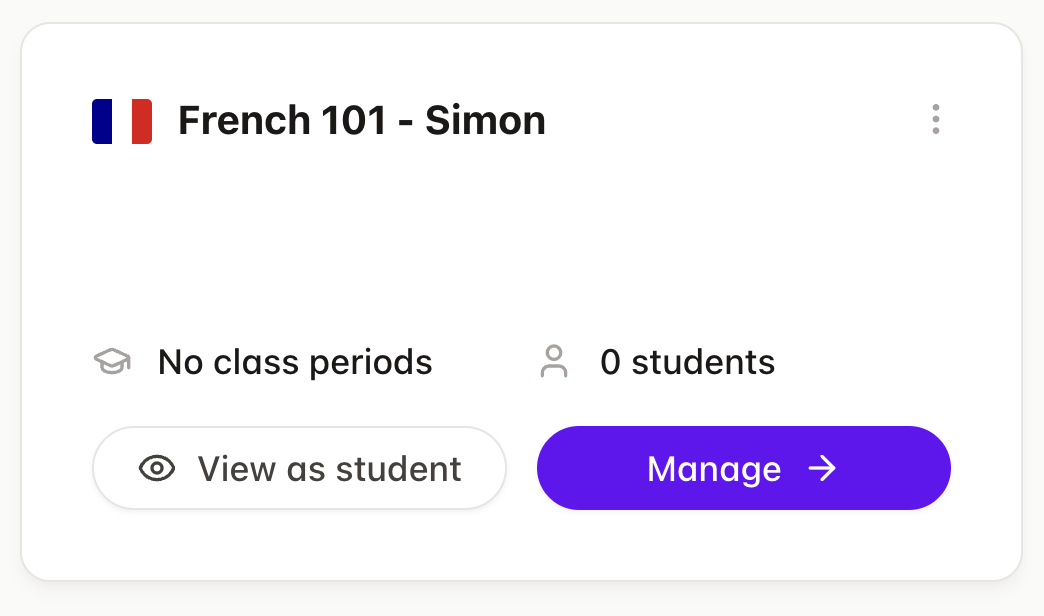
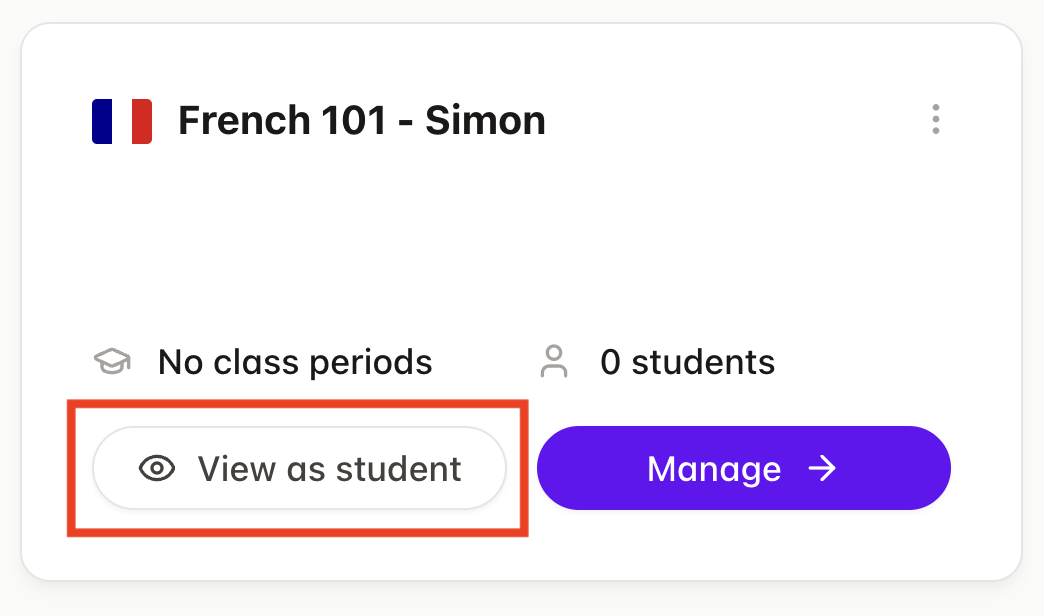
If you choose to View as Student, you will be able to test the platform. If you click on the Manage button, you will access the teacher dashboard. More on this shortly.
Getting Familiar with Speakology
We highly recommend experiencing Speakology from the learner's perspective. It will help you anticipate questions and determine how you want to introduce it in class.
To try Speakology for yourself, enter your course as a student and select an activity to try. If your course does not have any pre-loaded activity, you can start a conversation using the Talk About Anything feature.
As you start speaking, keep an eye on the progress bar, located at the bottom left:
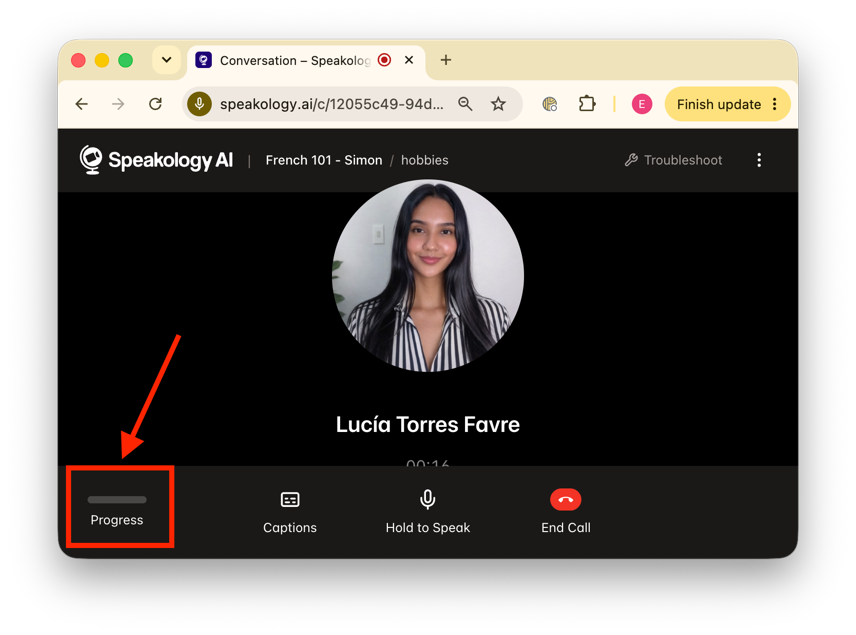
Make sure the bar is full before ending the conversation. The platform requires a minimum amount of speech in order to provide an evaluation. If you don’t speak long enough, it will not have enough information to give feedback.
Creating an Activity
Once in your course, click Add New Activity:
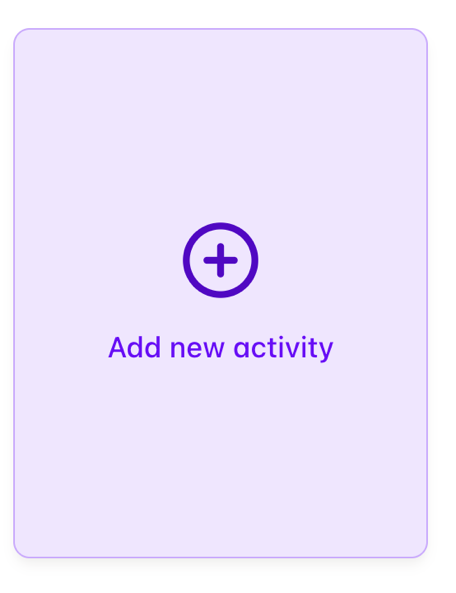
Speakology offers different ways for students to engage in conversation practice. As you begin, focus on Video Calls:

Then, choose either to build a conversation on a specific topic or create a role-play:
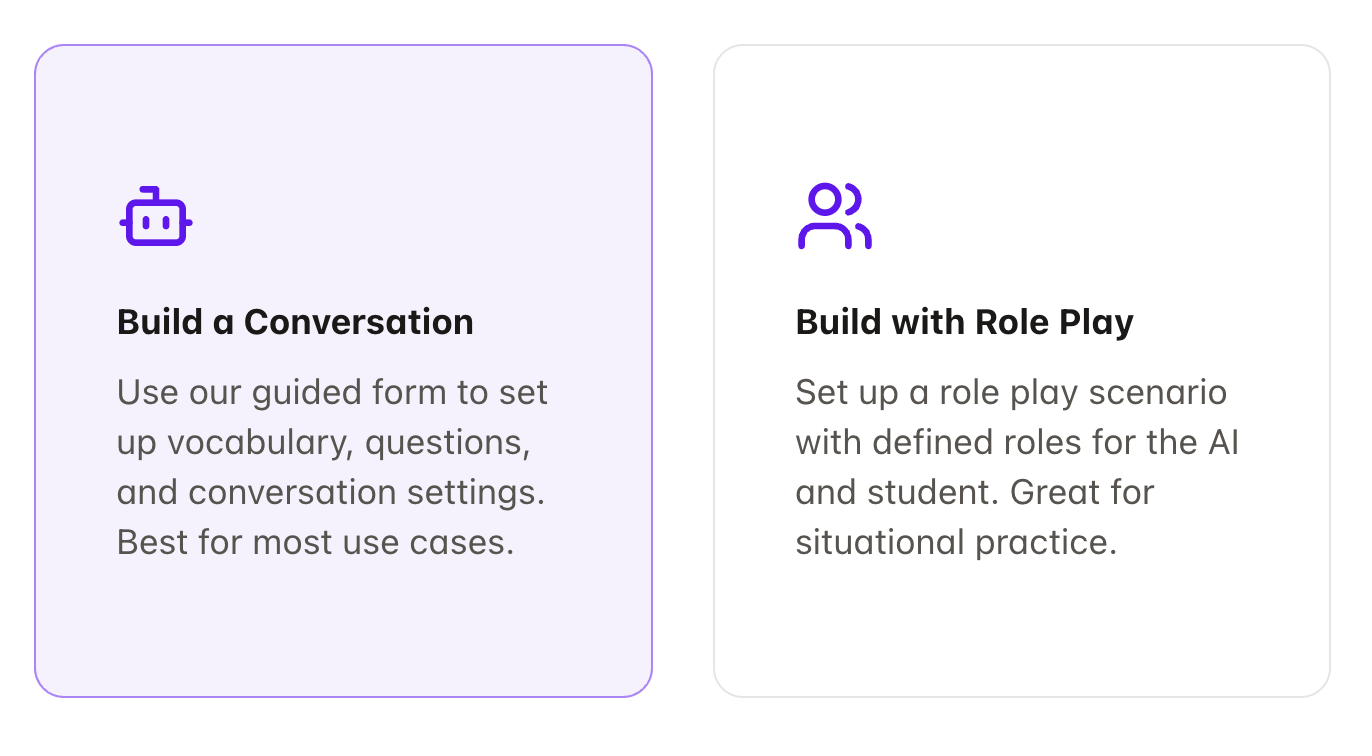
Choosing an Activity
Start with the learning objective rather than the technology. Ask yourself: What do I want students to practice speaking about or doing? Then select the activity that best supports that goal.
From here, it's a three-step process:
First — Name your activity
Choose a descriptive name, preferably in the target language, then choose the target proficiency level of your student(s).
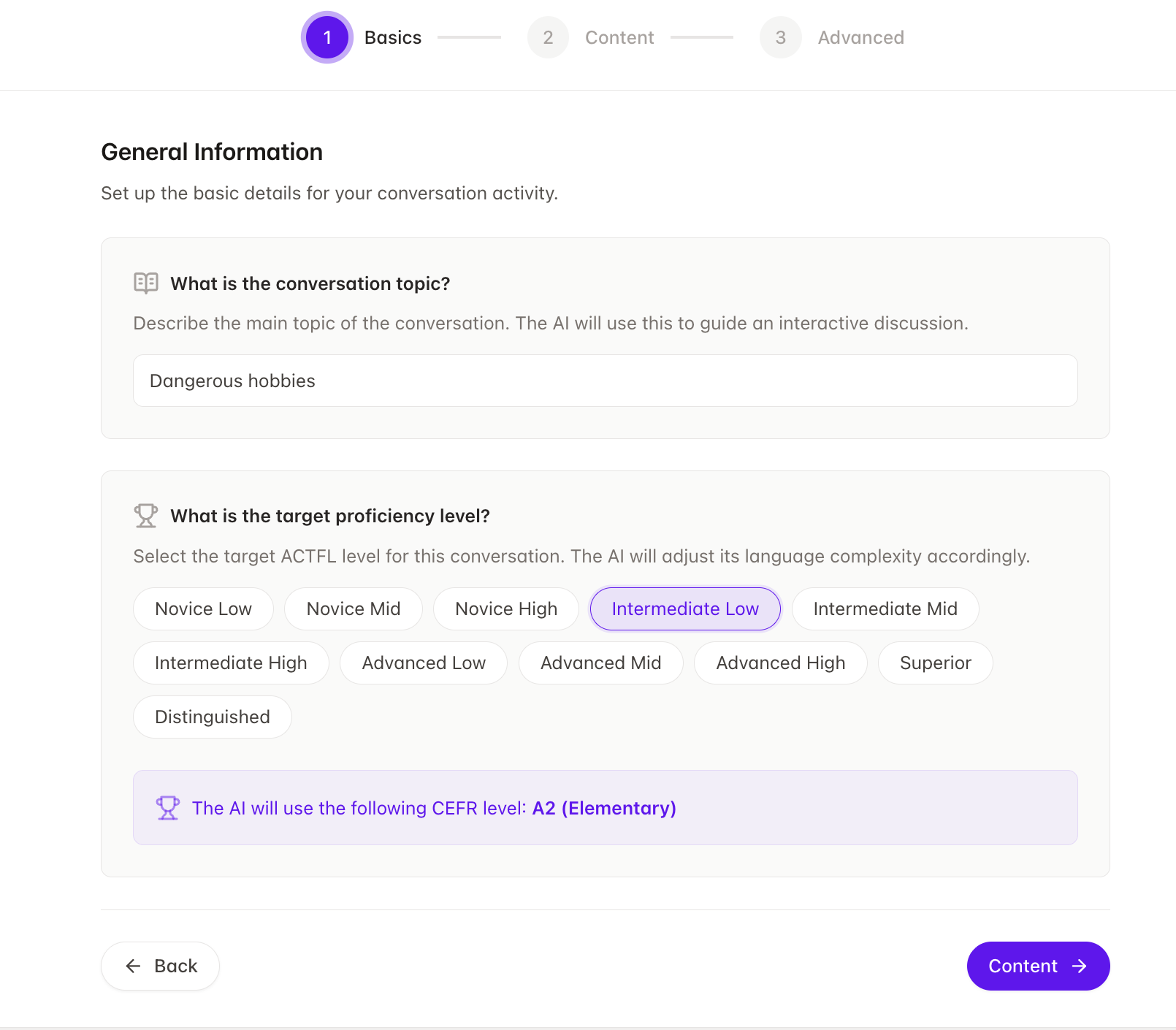
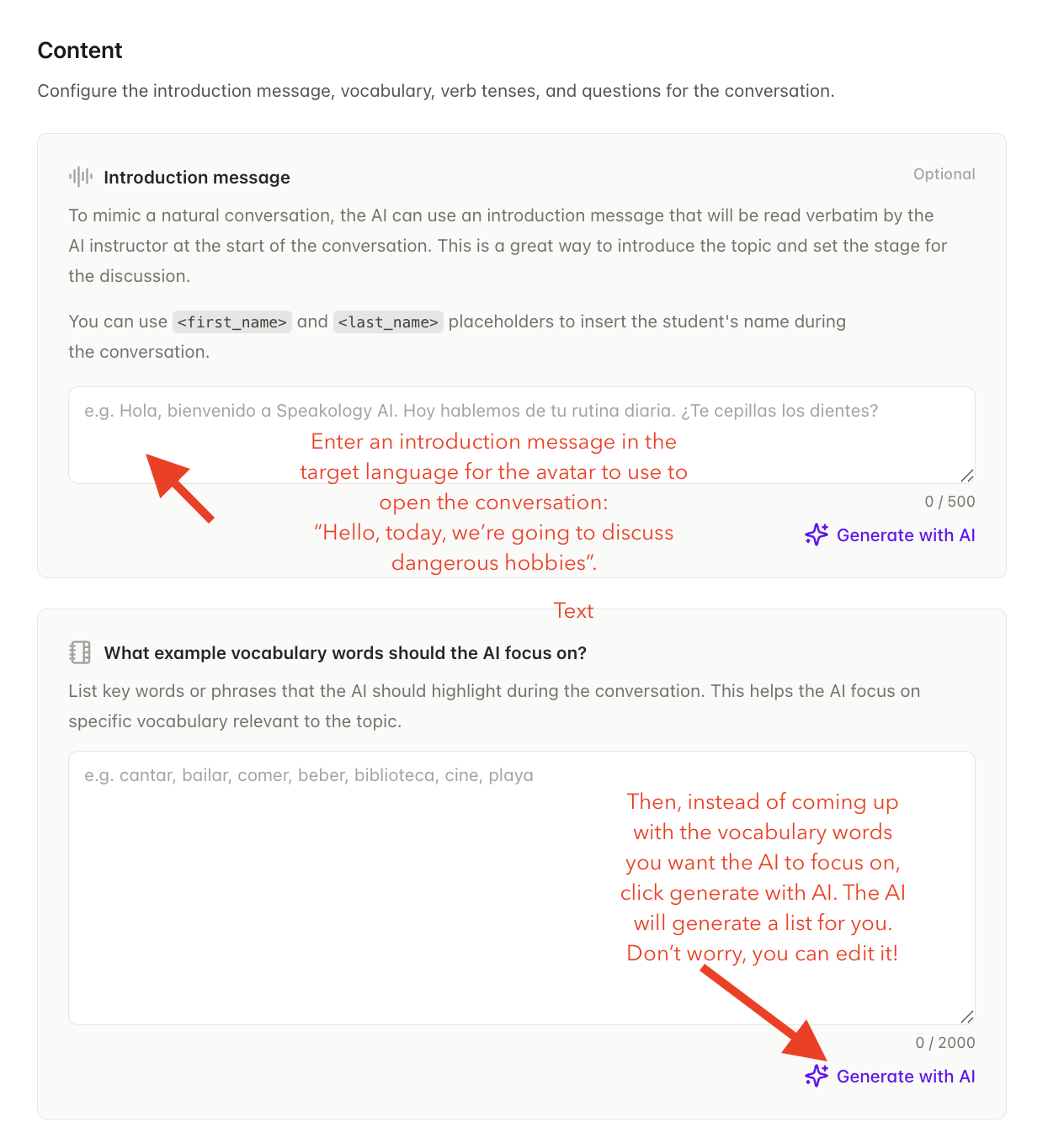
Second — Enter activity details
The AI pulls from the activity title to suggest some vocabulary words. Repeat the same process to select target tenses (present, past, future, etc) that the AI should use in the conversation and generate example questions for the AI to ask the student. Again, you can edit the content generated by the AI. When done, click Settings at the bottom of the page.
Third — Customize advanced settings
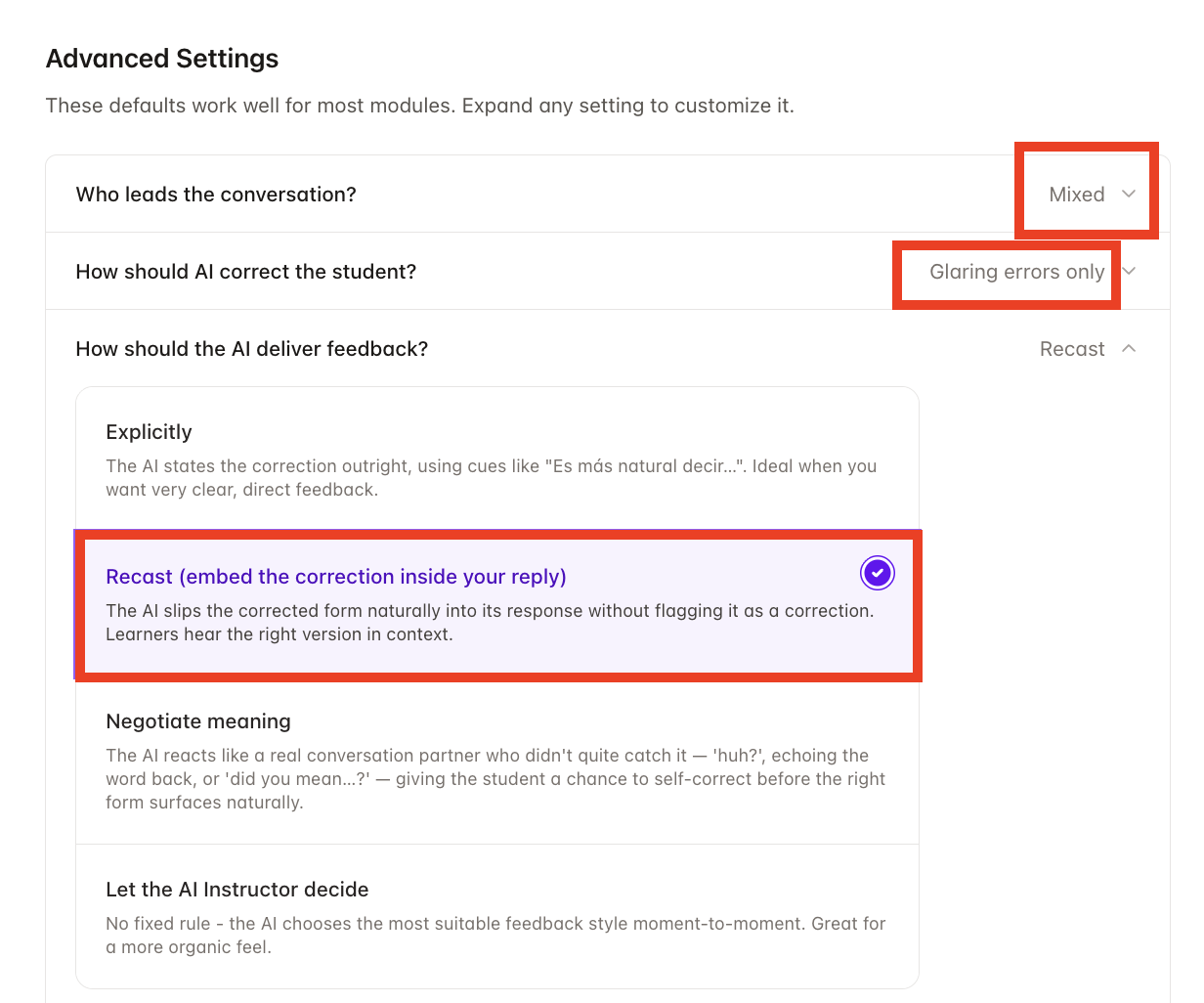
Finally, make sure to customize the following three advanced settings:
-
Who leads the conversation? Choose whether the student or the AI drives the exchange, or a mix of both. For complete beginners, let the AI lead. As students progress, they can take on a more active role.
-
How should AI correct the student? Set how much the AI intervenes, from correcting every error to flagging only glaring ones. We highly recommend you choose to only correct the most glaring errors.
- How should the AI deliver feedback? Pick the style of correction: explicit, recast (the correct form woven naturally into the reply), negotiation of meaning, or left to the AI's judgment. We highly recommend that you choose the recast option.
Saving and Publishing an Activity

-
If you're not ready to publish your activity, save it as a draft.
-
If you want students to see the activity on their dashboard, publish the activity.
- If you want to attach a deadline to your activity, click Publish and Assign, and follow the instructions to assign a due date.
Note: You don't have to assign your activity. If you just publish it, students will see it when they log in.
Reviewing Student Progress
From the teacher dashboard, select Roster from the menu on the left:
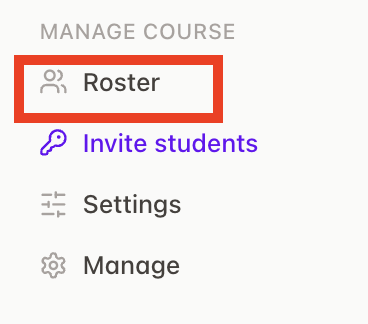
Click your student's name to review their progress.
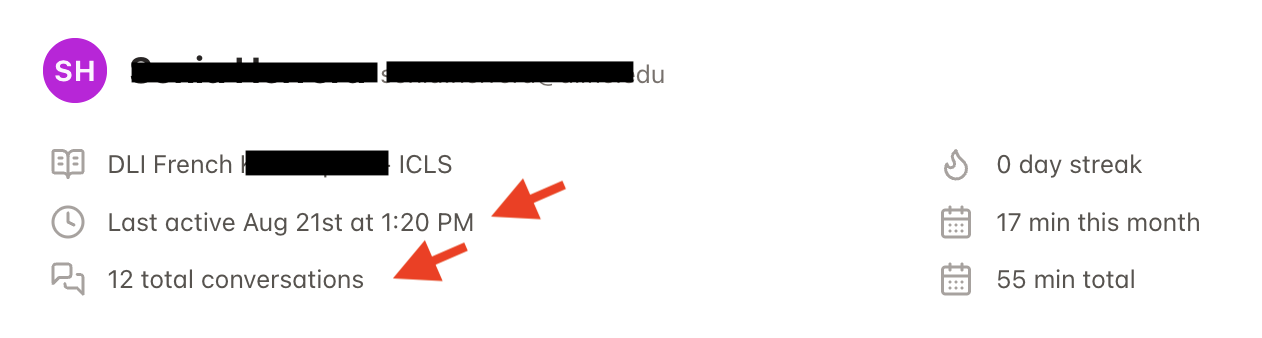
Speakology provides a lot of feedback and information. As you begin with the platform, we suggest that you focus on the following:
Number of conversations:
Shows how many conversations a student has completed.
Why it matters: Helps you see whether the student is getting enough speaking practice.
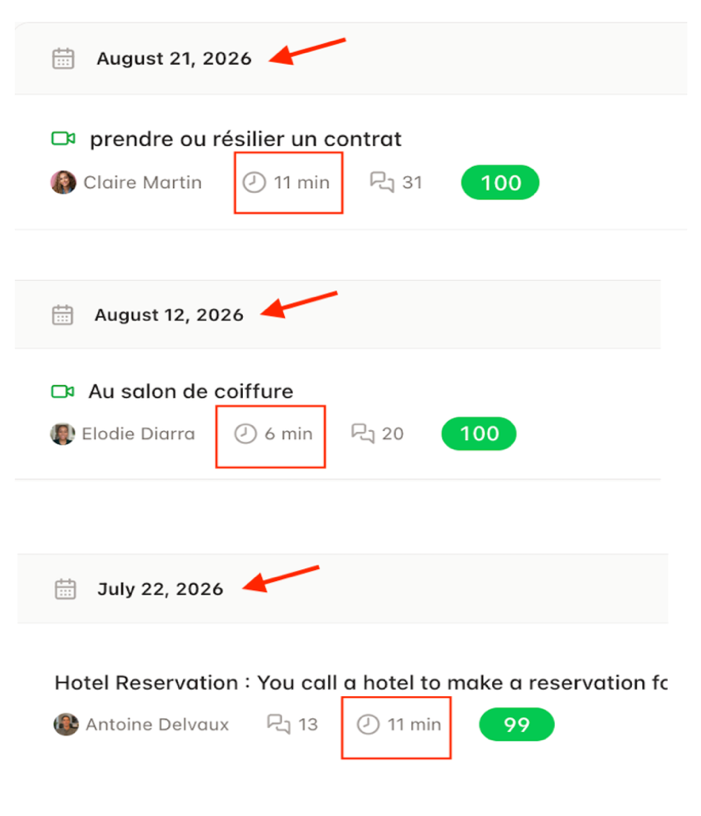
Length of conversations:
Shows how much time the student spends in each conversation.
Why it matters: Longer conversations may indicate greater engagement and sustained speaking practice.
Frequency:
Shows how regularly the student uses Speakology.
Why it matters: Regular practice is generally more beneficial than completing many conversations at once.
Last active:
Shows the most recent date the student used Speakology.
Why it matters: Helps you quickly identify students who may have stopped practicing or need encouragement.
Tips for Integrating Speakology into Your Class
The most important principle is simple: connect Speakology to what happens in class.
Students are more likely to engage with Speakology when they understand how the activity supports what they are learning.
Preview before class
Have students discuss an upcoming topic before you teach it. They arrive in class with relevant vocabulary activated and questions already forming.
Review after class
Assign a conversation that revisits material you have just covered so students receive additional speaking practice while the content is still fresh.
Reference Speakology in class
Bring Speakology back into classroom discussions. For example:
“Several of you had trouble explaining this idea in your Speakology conversations. Let's look at a few expressions that might help.”
This signals that Speakology is part of the course rather than an unrelated homework task.
Give specific, class-linked assignments
Avoid vague instructions such as “Use Speakology this week.” Connect the assignment to a lesson, objective, topic, or upcoming assessment.
Model an activity
Complete a short Speakology conversation yourself and show students how it connects to what they are doing in class.
Acknowledge that talking to AI may feel unusual
For some students, speaking to an AI conversation partner feels strange at first. Acknowledge this and explain the purpose of the activity rather than assuming students will immediately embrace the technology.
Follow up with students who aren't participating
A personal reminder that explains the connection to class can be more effective than a generic reminder.
Close the loop
When something practiced in Speakology comes up naturally in class, point it out. The goal is for students to experience one continuous learning process rather than “class” and “Speakology” as two separate activities.
Need Help?
For questions about using Speakology at ICLS, contact:
Edwige Simon — esimon@icls.edu