
All ICLS teachers have access to the online version of Microsoft Office 365, including Word. Files created and edited in this version are automatically updated and can be shared with any other ICLS.edu accounts using the Share button.
However, if you need to download or export the file to your computer, you have one of two options.
Download as a .docx (Word) file
To download the file as a .docx file, which can be opened and edited in the desktop version of Microsoft Word, do the following.
- Open the file in Word 365 online.
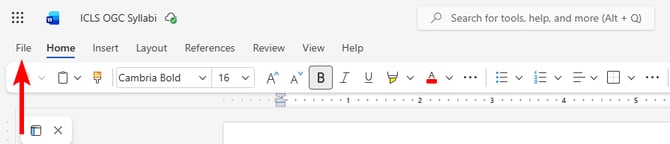
- Click 'File' at the top-left of the toolbar.
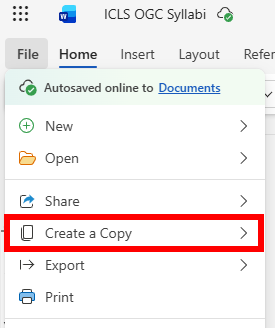
- In the dropdown menu, click 'Create a Copy'.
- On the flyout menu, select 'Download a copy'.
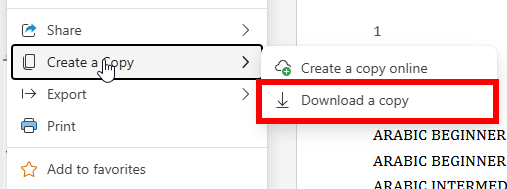
This will then begin downloading the .docx (Word) file to your computer.
Export as a PDF
To export the file as a PDF, which can be more easily uploaded into your courses or shared with students, do the following.
- Open the file in Word 365 online.
- Click 'File' at the top-left of the toolbar.
- In the dropdown menu, click 'Export'.
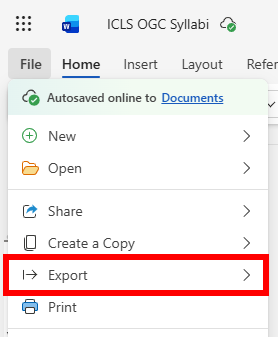
- In the flyout menu, select 'Download as PDF'.
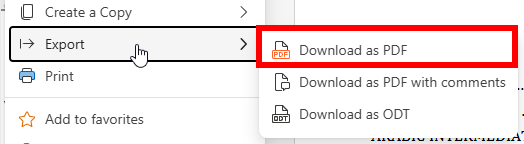
This will then convert the file to a PDF and begin downloading it to your computer.