
As part of this move to ICLS.edu email addresses, ICLS Zoom accounts will be migrated to use ICLS.edu email.
IMPORTANT: This process is time sensitive, as the account change link expires after 24 hours. If you receive an expiration message after clicking the link, please reach out to ITSupport@icls.edu.
The following is the process of migrating your account. A video version is also available here.
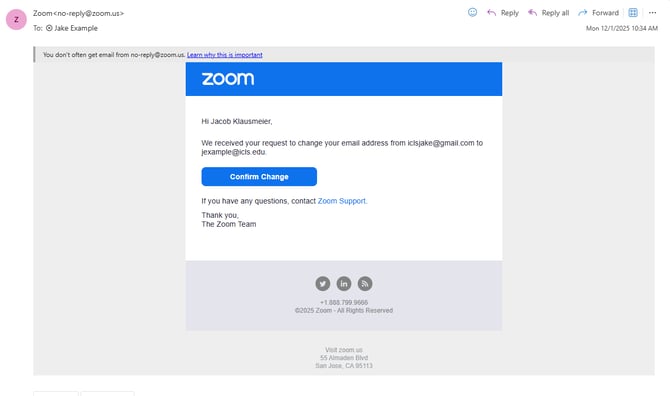
1. Confirming the Change to Your Zoom Email
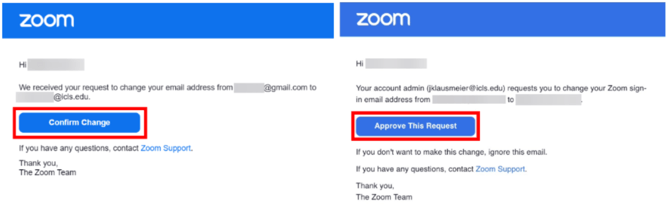
Check your personal email (not ICLS email) for an email from Zoom regarding the change request.
2. Approving the Change Request
Open this email and click 'Approve this request' or 'Confirm change'.
3. Sending the Confirmation to your ICLS Email
A page on the Zoom website will open. Once loaded, click 'Send Now' and a confirmation email will be sent to your icls.edu inbox.
4. Approving the Change through your ICLS Email
Go to your ICLS.edu inbox and find the email from Zoom. Open this email and click 'Approve this Request'.
Instructions for accessing your ICLS.edu inbox are available here.
5. Setting a New Password for Zoom
Enter a new password that meets the following requirements:
-
At least 8 characters long
-
Contains at least one letter
-
Contains at least one number
-
Includes both uppercase and lowercase letters
-
Cannot contain four consecutive characters or identical characters.
Once your new password is inputted, click 'Submit'.
If the 'Submit' button doesn't work, check for any requirements highlighted in red. Your password must meet all requirements before you can continue.
5. Logging into Zoom with ICLS Email
Once a password is set, go to the Zoom website and log in with your icls.edu email and the password you just created.
6. Retrieving the One-Time Passcode
If you are prompted for a One-Time Passcode, you will receive another email from Zoom to your ICLS.edu inbox. Input the passcode from this email and click 'Verify'.
Important Notes
Once this process is completed, you will now use your ICLS.edu email to log into your Zoom account moving forward.
Some important notes:
-
If you use Zoom in Canvas, note that access may be affected during this transition. Once the transition is complete, your access will be restored.
-
This process is time-sensitive; complete it as soon as possible.